Ask Us
Language Settings in Microsoft Word (Office 365 Edition)
 Printer-friendly version
 PDF version
Changing the Default Language
If you would like to check the spelling and grammar of your file in a language other than English, follow these steps:
- Login to one of the workstations with your UTORid and password.
- Under the Start menu, scroll up to Microsoft Office icon and click on Microsoft Word.
- The program will now open on the desktop.
- Click on the Review tab.
- Under Language, click on Set Proofing Language.
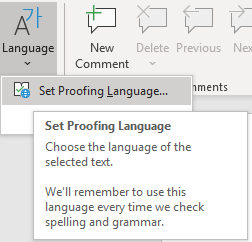
- A window will appear on the screen labelled Language. Highlight your preferred language by clicking on it, as shown below.
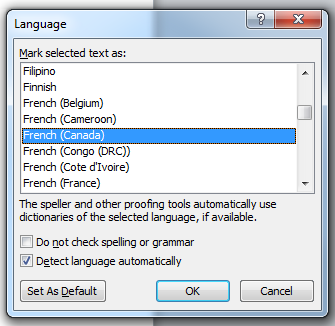
- Click OK.
Translation
- Login to one of the workstations with your UTORid and password.
- Under the Start menu, scroll up to Microsoft Office icon and click on Microsoft Word.
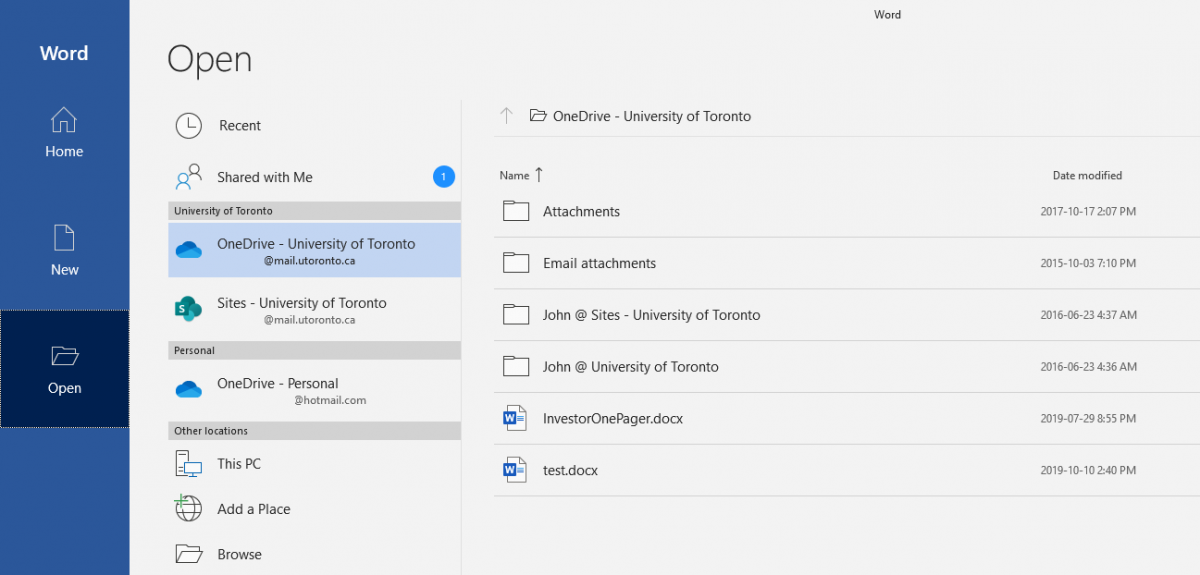
- The program will now open on the desktop. Under the File tab, click on Open and navigate to the file that you need.
- Click on the Home tab.
- Highlight a word or a phrase in your document that you would like translated.
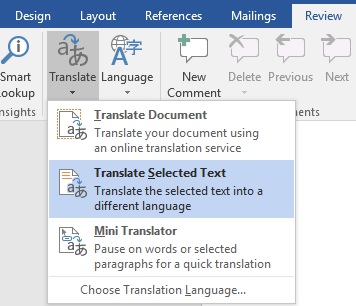
- Click on the Review tab.
- Click on Translate and then on Translate Selected Text.
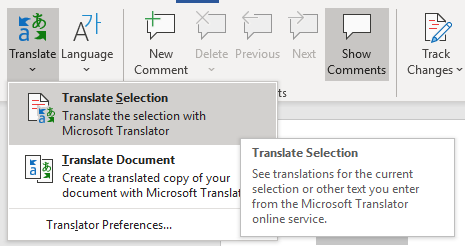
- A pane will appear on the right-hand side of the screen called Translator.
- In the under Translator, specify the original language of your document (under the scroll-down menu next to From) as well as the language to which you would like your text to be translated to (under the scroll-down menu next to To), as shown below.
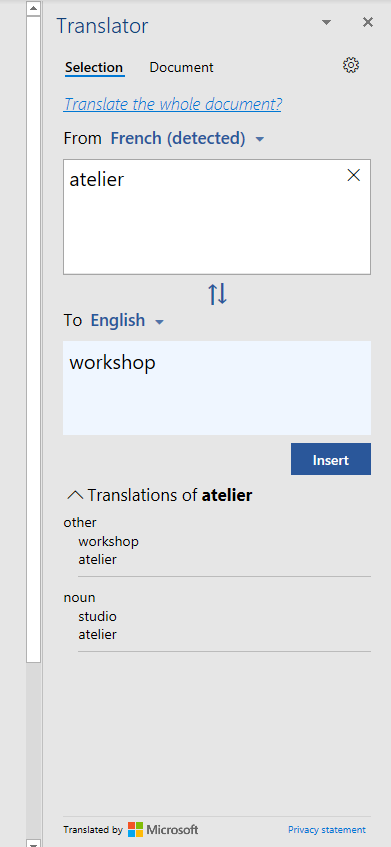
- Results are displayed below Microsoft Translator, as shown in the example above.
Note:
Word does not have an extensive translator. If you need to translate the entire text of your document, there are a number of online translators available, such as Google Translate or Microsoft Translator.
Last updated: June 10, 2020